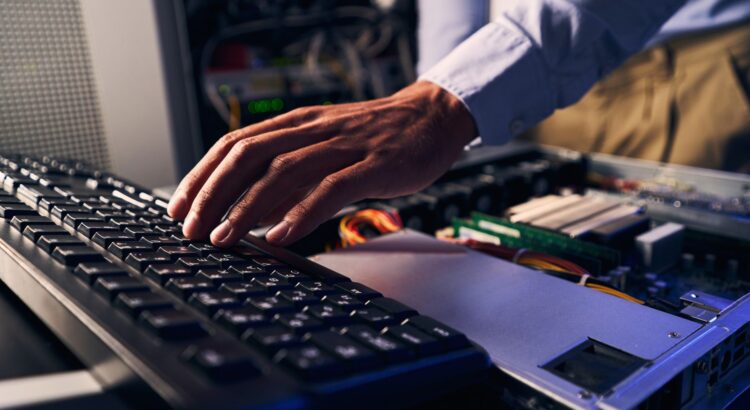
In the fast-evolving world of technology, ensuring your PC runs at its peak performance is crucial for both work and play. Whether you’re a gamer, content creator, or someone who simply wants to enhance your computing experience, upgrading your PC is one of the most effective ways to boost its speed, efficiency, and overall performance. However, it’s easy to get lost in the sea of hardware options and technical jargon. This guide provides expert advice on maximizing your PC’s performance through upgrades that make a real difference.
1. Upgrade Your RAM for Multitasking Efficiency
Random Access Memory (RAM) is one of the most critical components when it comes to improving your PC’s performance. The amount of RAM directly influences your computer’s ability to handle multiple tasks at once, and upgrading it can provide a noticeable boost, especially for multitasking or running resource-heavy applications.
Expert Tip: If you frequently run memory-intensive programs like video editing software, 3D modeling tools, or high-end games, increasing your RAM to 16GB or even 32GB will significantly enhance your PC’s performance. For typical everyday use, however, 8GB is usually sufficient.
What to look for: When purchasing RAM, ensure it’s compatible with your motherboard (check the maximum supported capacity and the speed of RAM it supports). DDR4 RAM is the most common for modern systems, but DDR5 RAM is emerging as the new standard, offering faster speeds and greater efficiency.
2. Switch to a Solid State Drive (SSD)
If your PC is still using a traditional Hard Disk Drive (HDD), upgrading to a Solid State Drive (SSD) will likely offer the most noticeable performance boost. SSDs are significantly faster than HDDs, meaning your system will boot up quicker, programs will load faster, and files will be saved and accessed more efficiently.
Expert Tip: If you can’t afford to replace your entire drive, consider installing a smaller SSD (like 250GB or 500GB) to serve as your primary drive for your operating system and most-used applications. Keep larger files, like videos and photos, on a secondary HDD to maximize both speed and storage.
What to look for: Look for SATA III or NVMe SSDs. NVMe SSDs offer even faster read/write speeds, particularly if your motherboard supports PCIe slots, which deliver even higher performance than SATA.
3. Upgrade Your Graphics Card for Better Gaming and Multimedia
For gamers, designers, and video editors, the graphics card (GPU) is one of the most important upgrades you can make. Modern GPUs have immense processing power that can significantly enhance visual performance in games, rendering tasks, and video editing software. Whether you’re aiming for 4K gaming or smoother video playback, a better GPU will elevate your experience.
Expert Tip: When upgrading your GPU, consider your specific needs. Gamers aiming for high frame rates at 1080p or 1440p can opt for mid-range GPUs, while those into 4K gaming or VR should look at high-end GPUs from brands like NVIDIA or AMD. Make sure your power supply can handle the new card, as high-end GPUs often require more power.
What to look for: Look for GPUs with more VRAM (video memory) for better performance at higher resolutions. Additionally, check that the GPU is compatible with your motherboard’s PCIe slots (most modern systems support PCIe 3.0 or 4.0).
4. Improve Your Cooling System
When you push your PC’s components to their limits, whether through gaming, video rendering, or heavy multitasking, managing heat is essential. Without adequate cooling, your system could throttle performance to prevent overheating, which can result in slower speeds and even damage to your components over time.
Expert Tip: If you notice that your PC gets excessively hot under load, it’s time to upgrade your cooling system. Consider adding extra case fans, upgrading to more efficient CPU cooling (such as a larger air cooler or liquid cooling), and ensuring your system has proper airflow to keep temperatures in check.
What to look for: Look for high-quality thermal paste, additional case fans with good airflow, or even a liquid cooling solution if you’re planning to overclock your CPU.
5. Overclocking Your CPU and GPU
Overclocking is the process of increasing the clock speed of your CPU and/or GPU beyond the factory settings to extract additional performance. While this can lead to significant speed gains, it also generates more heat and requires stable cooling systems.
Expert Tip: If you’re comfortable with tweaking system settings, overclocking can provide a noticeable performance increase without needing to buy new components. Ensure your cooling is adequate before attempting to overclock, and monitor the system for stability and temperatures to avoid damaging your hardware.
What to look for: Ensure your motherboard supports overclocking (some lower-end boards don’t), and choose a processor and GPU that are unlocked for overclocking (look for models with “K” or “X” in their names, like Intel’s i7-11700K or AMD’s Ryzen 9 5900X).
6. Upgrade Your Power Supply
Upgrading your power supply (PSU) might not always seem like an obvious upgrade, but it’s crucial for overall system stability, especially if you’re upgrading other components like your GPU. A reliable PSU will ensure that your components receive stable and adequate power, minimizing the chances of system crashes or instability.
Expert Tip: Choose a PSU with sufficient wattage to support your system’s power demands, and always go for a high-quality, reputable brand. If you plan to add high-performance components or overclock your system, aim for a PSU with at least 80 Plus Gold certification for energy efficiency.
What to look for: Calculate the total power requirement of your system (most online calculators can help with this) and ensure the PSU you purchase provides slightly more power than what your system needs. Opt for modular PSUs if you want cleaner cable management.
7. Consider a New Motherboard
Upgrading your motherboard is not always necessary but may be required when you are upgrading key components like the CPU or RAM. A new motherboard can also unlock newer technologies such as PCIe 4.0, faster memory support, or better CPU socket compatibility.
Expert Tip: If you’re looking to take full advantage of the latest technology, like faster memory, PCIe 4.0 SSDs, or the latest generation of processors, upgrading your motherboard may be a wise decision.
What to look for: Ensure the motherboard is compatible with your chosen CPU and RAM. Look for additional features like USB-C ports, Wi-Fi 6, and support for the latest PCIe slots.
8. Regular Software Maintenance
While hardware upgrades are a great way to improve performance, don’t overlook the importance of keeping your system’s software in top shape. Regular maintenance tasks like cleaning up your hard drive, updating drivers, and disabling unnecessary startup programs can also contribute to smoother performance.
Expert Tip: Use disk cleanup tools and defragmentation (for HDDs) or trim (for SSDs) to keep your storage running efficiently. Ensure all your drivers are up-to-date and consider using performance optimization software to monitor and fine-tune your system.
Conclusion
Upgrading your PC’s performance is an investment in both productivity and enjoyment. Whether you’re looking to speed up your workflow, enhance gaming experiences, or future-proof your system, these expert tips will help you get the most out of your hardware. By carefully selecting upgrades that align with your specific needs, you’ll not only boost your PC’s performance but also extend its lifespan, ensuring that it continues to serve you well for years to come.
Do you want to get your invoice cashed for your PC-related business? A solution like factoring services could help you. By selling your outstanding invoices, you can access immediate cash flow to keep your business running smoothly. It’s a great way to stay on top of your finances without the wait.