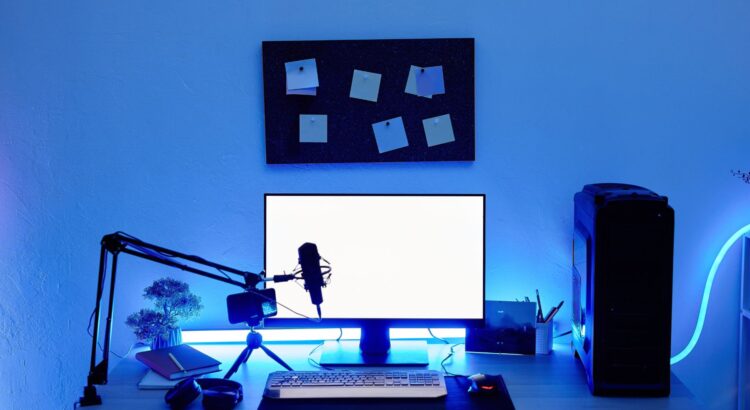
Building your own PC can be a rewarding and cost-effective way to ensure your system meets your needs. Whether you’re gaming, editing videos, working with heavy software, or simply browsing the web, the right components can enhance your overall experience. This guide will take you through the essential components you need to consider when building your ideal setup.
1. Central Processing Unit (CPU)
The CPU is the heart of your computer. It processes the instructions that make everything work, from opening a document to running complex calculations in a game. When selecting a CPU, you’ll typically choose between Intel and AMD, with both brands offering high-performance options.
Intel is often preferred for gaming due to its high clock speeds and strong single-core performance, which is crucial for many games. AMD, on the other hand, is a strong contender with its Ryzen series, offering excellent multi-core performance, which is beneficial for tasks like video editing or running virtual machines.
When selecting your CPU, consider the following:
- Core Count: For general use, a quad-core CPU should suffice, but for gaming or professional work (video editing, 3D rendering), aim for a six-core or higher.
- Clock Speed: Measured in GHz, this dictates how quickly the CPU can process data. A higher clock speed typically results in better performance, but it’s not the only factor.
- Compatibility: Ensure your motherboard supports the CPU you choose. The CPU socket type (e.g., LGA 1200 for Intel or AM4 for AMD) must match the motherboard’s socket.
2. Motherboard (MB)
The motherboard is the main circuit board that connects all your components. When selecting a motherboard, consider the following factors:
- Form Factor: This refers to the size of the motherboard. Common sizes include ATX (standard size), microATX, and mini-ITX. Larger boards often offer more features, such as additional RAM slots and expansion ports.
- Socket Type: As mentioned above, ensure the motherboard’s socket matches your CPU’s.
- Chipset: The chipset determines the motherboard’s compatibility with certain features, like overclocking or additional PCIe slots. High-end chipsets like the Intel Z-series or AMD X-series provide the most features.
- Connectivity: Look for modern ports like USB 3.0/3.1, Ethernet, HDMI, and Wi-Fi support. If you’re looking for advanced connectivity, consider motherboards with Thunderbolt support or Wi-Fi 6.
3. Graphics Processing Unit (GPU)
For tasks that demand high graphics performance, such as gaming or video editing, the GPU is essential. The GPU handles rendering images and video output, making it a critical component for gaming or content creation.
- NVIDIA vs. AMD: The two main GPU brands are NVIDIA and AMD, with NVIDIA’s GeForce RTX series dominating the gaming market due to its ray-tracing capabilities and DLSS (Deep Learning Super Sampling) technology. AMD’s Radeon cards also provide excellent performance and can offer better value, especially for mid-range builds.
- VRAM (Video RAM): For gaming or video editing, look for a GPU with at least 6GB of VRAM. Higher amounts (8GB or 12GB) are preferable for demanding games or video rendering.
- Compatibility: Ensure your motherboard has the appropriate PCIe slots for the GPU and that your PSU can provide enough power.
4. Random Access Memory (RAM)
RAM is your system’s short-term memory, temporarily storing data for the CPU to access quickly. The amount of RAM you need depends on your use case:
- 8GB: Suitable for general use and light gaming.
- 16GB: Ideal for gaming, multitasking, and moderate content creation.
- 32GB or more: Best for demanding applications like video editing, 3D rendering, or running virtual machines.
When selecting RAM, consider the speed (measured in MHz) and latency (CL number). A higher MHz indicates faster data transfer speeds, while lower latency generally improves performance. Look for DDR4 RAM, as it’s the current standard.
5. Storage
You’ll need storage to keep your operating system, applications, and personal files. There are two main types of storage:
- Solid-State Drives (SSD): SSDs offer faster read/write speeds than traditional hard drives, meaning faster boot times and quicker file transfers. Opt for an NVMe SSD for even faster speeds, as it connects directly to the motherboard.
- Hard Disk Drives (HDD): While slower than SSDs, HDDs offer larger storage capacities at a lower price. If you need a large amount of storage for files, consider pairing an SSD for your operating system and programs with an HDD for bulk storage.
A typical setup might include:
- A 500GB to 1TB SSD for the operating system and games.
- A 2TB or larger HDD for storing videos, photos, and other large files.
6. Power Supply Unit (PSU)
The PSU provides the necessary power to all your components. It’s crucial to select a PSU that meets the power requirements of your system while also having some headroom for future upgrades. To calculate your power needs, use online PSU calculators based on your selected components.
- Wattage: The wattage depends on the total power consumption of your system. For a typical gaming PC, a 650W to 750W PSU is recommended, while high-end builds may need a 1000W PSU or more.
- Efficiency Rating: Look for a PSU with an 80 Plus rating (Bronze, Silver, Gold, Platinum), as these are more efficient and generate less heat.
7. Cooling System
Keeping your PC cool is essential for maintaining performance and longevity. There are two main types of cooling:
- Air Cooling: Involves using fans to cool the components. High-quality air coolers are often sufficient for most builds and are generally more cost-effective.
- Liquid Cooling: Uses a closed-loop liquid system to cool the CPU. Liquid cooling is quieter and more efficient, particularly in overclocked or high-performance systems.
Ensure that your case has enough space for the cooling solution you choose and that airflow is optimized for maximum efficiency.
8. Case
The case is where all your components are housed, and its size will determine what components you can fit. When choosing a case, consider:
- Size and Form Factor: Ensure that the case matches the form factor of your motherboard (ATX, microATX, mini-ITX).
- Airflow: Look for a case with good airflow, which usually means mesh panels and space for multiple fans.
- Aesthetics and Build Quality: The case should be easy to build in and durable. Consider cable management features to keep everything neat.
9. Peripheral Devices
While not part of the core build, peripherals like a keyboard, mouse, monitor, and audio system are essential for the overall experience.
- Keyboard: Mechanical keyboards provide a better typing experience, especially for gamers. Choose one that suits your preferences for key switches (e.g., Cherry MX).
- Mouse: A mouse with adjustable DPI and extra programmable buttons can enhance your gaming or productivity experience.
- Monitor: Look for a monitor with a high refresh rate (144Hz or more) for gaming and 4K resolution for content creation.
- Audio: If you’re into audio editing or gaming, invest in good-quality headphones or speakers.
Conclusion
Building your own PC allows you to tailor your system to your exact needs, whether you’re focused on gaming, content creation, or general productivity. By carefully choosing components based on performance, compatibility, and future-proofing, you can create a machine that serves you well for years to come. Be sure to balance your budget with your performance needs, and don’t forget to consider factors like cooling and expandability to ensure your system runs smoothly and stays relevant over time.